
Settings
All settings live in the Preferences window, reachable from the tray menu. They're grouped into seven tabs by intent: Schedule (when breaks fire), Breaks (what they look and sound like), Pausing (suppressing and pausing breaks), System (app and OS integration), Insights (stats and history), Profiles, and About.
Settings persist automatically as plain JSON in the platform app-data directory (settings.json), atomically rewritten on every change — no save button to forget about. See Architecture internals → On-disk state for the file paths.
Info icons
Most non-obvious settings carry a small ⓘ icon next to the label — hover or focus it for a short explanation. Power-user options are tucked behind a Show advanced disclosure in each section.
Search
A search box at the top of the window jumps straight to any setting. Type a name or synonym (e.g. "volume", "dnd", "shortcuts") and pick a result — Entracte switches to the right tab and highlights the section. Press Enter to jump to the first match.
A small handful of personalisation extras are part of the Supporter pack and flagged inline below.
Schedule
The Schedule tab covers when breaks happen.
- Active hours — limit breaks to a daily time range (Bedtime ignores this and uses its own window).
- Micro breaks — an enable toggle, schedule (interval, fixed times, or both), interval / duration, plus an advanced control for idle reset. (How a break is delivered — overlay / windowed / notification — and its enforcement now live on the Breaks tab.)
- Long breaks — same shape as Micro breaks.
- Bedtime — start/end window and reminder cadence. Inside the window, Entracte fires a Sleep prompt instead of Micro/Long breaks. Sleep prompts are always enforceable — they ignore Do Not Disturb and camera state.
- Daily screen time — a cumulative-budget nudge that fires once you've accumulated a configurable amount of active time across the day. Different from breaks. The counter ticks only while you're actually at the keyboard, resets at local midnight, and survives restarts. A small progress bar in the same section shows today's total against the budget.
- Show advanced scheduling (collapsible) — Input-aware scheduling: delay a break if you're mid-keystroke (with grace and max deferral), and pause the break countdown while you're typing.
Breaks
The Breaks tab covers what breaks look and sound like, and the escape hatches.
- Delivery — a per-kind delivery-mode dropdown for Micro and Long, plus a Test button for each that fires a short example break. Enabling a break and setting its cadence stays on the Schedule tab; a disabled kind's controls here are greyed out. See Delivery mode below.
- Overlay — transparency, text size, theme (Dark / Midnight / Forest / Rose / Sunset — plus Rotate and Custom in the Supporter pack), wellness hints toggle, current time toggle, monitor placement (see Monitor placement). Advanced disclosure adds windowed break size (presets of 70% / 80% / 90% or a custom slider, with optional per-kind overrides so a micro break can be smaller than a long one), high contrast, and the break-health vignette that intensifies as you skip more breaks. (Whether a break renders full-screen or windowed is set by the per-kind dropdown in the Delivery section above — see Delivery mode.)
- Sound — one volume slider that applies to every break sound, then a per-kind picker (Off, Chime at end of break, or Ambient (loops during break)) and a track for Micro breaks and Long breaks each. Selecting a track auditions it immediately — there's no separate Preview button. Choosing a custom sound file is a Supporter pack feature.
- Break ideas — optional rotation toggle (off by default — one idea is picked per break and stays on screen; turn on to cycle through the pool every N seconds), plus a Mix selector for Micro (Physical / Psychological / Both) and Long (Solo / Social / Both — Social prompts you to call someone, walk with a colleague, or share a coffee). The curated default pools cover every category out of the box; editing the pool text is a Supporter pack feature. A Guided routine selector per kind replaces the rotating idea with a step-by-step sequence (e.g. eye reset, full-body stretch) that advances through the break with a per-step countdown. Each kind has three modes: None (keep the rotating ideas), a specific routine, or Random — which draws a fresh routine each break from the bundled set, filtered by the categories you tick (Eyes / Mobility / Breathing / Desk yoga; none ticked means all) and a maximum difficulty (Gentle / Moderate / Active). These routine settings are per-profile, so different profiles can pull from different pools. The Spread routine steps across the whole break toggle (off by default) scales a routine's step durations proportionally so they exactly fill the break length rather than holding the final step until time runs out; a content-pack routine can override this with its own
pacingfield. - Today's chores — a daily "post-it" of tasks you'd like done (one per line, free for everyone). During a long break, Entracte surfaces one in the wellness-hint space — "You've got ~10 min — knock out: water the plants" — rotating to a different task each long break so the list works itself down over the day. The list is stored locally, separate from your settings profiles, and clears at local midnight, so each morning starts a fresh post-it. Leave it empty to keep the usual rotating ideas. Micro and bedtime breaks are unaffected.
- Content packs — share or back up your break ideas and guided routines as a plain local JSON file. Import adds a pack's ideas and routines to your pools without removing anything you already have (exact-duplicate ideas are skipped, and routines whose id collides with a built-in or one you already have are skipped); Export writes your current pools and imported routines to a file. Local files only — no cloud, no registry, nothing downloads automatically. See Content-pack format below.
- Skip & postpone — everything governing how a break can be dismissed, in one place: Strict mode (no skip, no postpone, all breaks enforced), the postpone master toggle and minutes, optional postpone escalation (each postpone of the same break adds extra delay), and per-break-kind toggles for which kinds can be postponed and skipped. Controls that depend on a switch above stay visible but greyed out until you enable it, so the dependency is discoverable rather than hidden. The one-shot Skip next micro / Skip next long buttons sit here too, and an Enforcement disclosure holds the per-kind wait for manual finish and cannot be dismissed options.
Delivery mode (per kind)
Each break kind picks its presentation from the Delivery section's dropdown (whether the kind fires at all is the enable toggle on the Schedule tab):
- Full-screen overlay (default) — full-screen prompt covering the monitor.
- Windowed — same overlay sized to a fraction of the monitor and centered (80% by default, configurable under Breaks → Overlay → Windowed break size), with
always_on_topdropped so the surrounding desktop stays reachable. Useful when you want a visible, focus-grabbing reminder without losing access to urgent things. Composes with Show break on: e.g.Monitor under cursor+Windowedshows one windowed overlay only on the display your cursor is on. - System notification only — skip the overlay entirely and post a non-blocking system notification with the break title and duration; the timer keeps ticking on the normal cadence. Because there's no overlay to interact with, break-engagement metrics (completion, skip, postpone) aren't recorded for that break type while notification mode is active.
Bedtime (Sleep) is hard-coded to full-screen overlay and ignores this setting.
Content-pack format
A content pack is a versioned JSON file:
{
  "version": 1,
  "name": "My pack",
  "hints": {
    "micro_physical": ["Look out the window"],
    "micro_psychological": [],
    "long_solo": ["Take a short walk"],
    "long_social": [],
    "sleep": []
  },
  "routines": [
    {
      "id": "my-eye-routine",
      "label": "Eye routine",
      "kind": "micro",
      "category": "eyes",
      "difficulty": "gentle",
      "steps": [{ "text": "Look far away", "seconds": 10 }]
    }
  ]
}
version must match the build's supported version (currently 1); all of hints/routines are optional. Import validates the structure (supported version, non-empty name, well-formed routines, size caps) and rejects a malformed file with a clear message rather than partially applying it. Export → import round-trips losslessly. Sound and theme bundling are not in v1 — the schema is versioned so they can be added later without breaking existing packs.
Monitor placement
Show break on chooses where overlays appear: All monitors (the default), Primary monitor, or Monitor under cursor (the display the mouse cursor is on at break-fire time). If active-monitor detection fails for any reason, Entracte falls back to the primary monitor.
All monitors is the default because a break you can sidestep by glancing at a second screen isn't really a break. If you'd rather keep a secondary display clear — for reference material, a dashboard, or a machine you're watching — switch to Primary monitor or Monitor under cursor. On a single-display setup all three behave identically.
Pausing
The Pausing tab covers when breaks should not fire — automatic suppression and manual pausing. (It was previously called "Quiet times".)
- Auto-pause — suppress breaks while Do Not Disturb / Focus is on (macOS, Windows), while the camera is in use (all OSes), or while fullscreen video is playing. On macOS, Windows and X11 Linux the fullscreen-video check confirms a real fullscreen window, so a small background video won't hold your breaks. On Linux Wayland there is no portable way to confirm a fullscreen window, so the toggle shows a caution marker: detection falls back to "any media is keeping the display awake" and may suppress breaks for a small background video.
- During breaks — Pause media while a break is showing quiets whatever is playing (video or audio) when a break starts and resumes it when the break ends. On Linux this targets your media players precisely (via MPRIS); on macOS and Windows it sends a play/pause media key as a best-effort, so it works for most players but can't guarantee the exact app.
- Pause for specific apps — toggle on and list app name fragments (one per line, partial case-insensitive match). Whenever any listed app is running, breaks are suppressed. A quick-add chip row offers common candidates for your platform.
- Manual pause — pause until a specific date and time (handy over a holiday when you're at the computer but not working), and a Resume button showing the current pause state. The same picker is reachable straight from the tray: Pause for… → Pause until… opens a small popup. The popup orders its date fields by your OS region and shows the time in your System → Display 12h/24h format, so it matches the rest of the app rather than the WebView's default locale.
System
The System tab covers app/OS integration.
- Startup — Start Entracte at login.
- Notifications — pre-break heads-up toggle and lead time (seconds).
- Global hotkeys — register OS-level keyboard shortcuts for the same actions the CLI exposes: pause (indefinitely or for a preset 15 / 30 / 60 minutes), resume, take a micro/long break now, skip the next micro/long break, and switch to the next profile. Off by default; enable it, then type an accelerator per action (e.g.
CmdOrCtrl+Alt+P) — clear a field to unbind it. Because the shortcuts are registered natively, they fire whether or not the Preferences window is focused. Binding the same chord to two actions is flagged inline so you can give each a unique combination. Bindings are stored per profile, so switching profiles re-applies that profile's hotkeys. - Tray countdown — show a live
M:SS/MM:SScountdown next to the tray icon, ticking down to the next break. Choose whether it tracks the next micro break, the next long break, or whichever is sooner. Defaults to on, target "next". Cleared while paused (shows "paused") and during an active break. macOS shows the text right next to the menu-bar icon; Linux shows it where the tray applet renders titles (varies by desktop environment). Windows does not support tray titles, so the toggle has no visible effect there. - Show advanced (hooks) (collapsible) — bind shell commands to break events (
break_start/break_end/break_postponed/break_skipped/pause_start/pause_end). Off by default; only enable if you understand the security risk of letting arbitrary commands run. Each hook row has an event picker, an Insert template… menu of editable starter commands (log to a file, pause/resume music, desktop notification, Slack status, Home Assistant scene — all plain local commands you fill in, no bundled integrations), and a Test button that runs the command once and shows its stdout/stderr and exit code so you can see what it does before relying on it. Commands run via argv with no shell, so pipes/redirects/$ENVneed an explicitsh -c "…"; the variables$ENTRACTE_EVENT,$ENTRACTE_KIND,$ENTRACTE_DURATION_SECS, and$ENTRACTE_OUTCOMEare available. Saving still requires confirming a native dialog.
Updates
Entracte checks for new versions itself; the controls live on the About tab.
- Check for updates — checks right now and, if there is a newer build, links to its release page.
- Automatically check for updates on launch — one silent check at startup, with a desktop notification only when something is available. On by default. Being offline is never nagged about.
- Update channel — which release line you follow.
- Stable only (default) — full releases only.
- Beta (weekly test builds) — also offers the weekly prerelease builds. You get fixes and new features earlier, in exchange for less testing than a stable release gets.
Switching back to stable does not downgrade you
Leaving the beta channel stops you being offered new betas; it does not move you back. You keep the build you have until a stable release overtakes it — which happens as soon as the stable version your beta was previewing ships. If you want to return to stable immediately, reinstall from the release page.
Homebrew installs update through brew upgrade --cask entracte instead, and that tap follows the stable line only — the channel setting does not affect it.
Insights
The Insights tab gathers all stats.
- Range — past week or past month.
- Summary — breaks taken, dismissal rate, time paused, top suppression reason.
- Breaks suppressed by — per-reason breakdown.
- Time of day — 24-hour histogram of when breaks fired.
- Past 12 weeks — a per-day heatmap.
- Manage data — Export CSV, Export full backup, Import full backup, Clear history. Full backups include settings + break-history files so you can restore this machine later. To keep backups in common cloud accounts (Google Drive, iCloud Drive, OneDrive, Dropbox), save the backup file inside that provider's synced folder.
- This session — in-memory counters since the current run started (Taken / Skipped / Postponed / Skip rate), with a Reset button.
Profiles
Each profile keeps its own copy of every setting on the previous tabs (break cadence, hints, overlay, quiet times, hooks, etc.). Switching between profiles is instant — the active one drives every other tab here and appears in the tray under "Active profile".
Per-row controls in the Profiles tab:
- ▲ / ▼ — reorder. Profiles render in their stored order across the tab and the tray menu.
- Use — make this profile the active one (hidden on the row that's already active).
- Rename — inline rename; Enter to confirm, Esc to cancel.
- Duplicate — clones the profile and appends
copy(orcopy 2, …) to the name. - Reset to defaults — two-click confirm. Replaces this profile's settings with the app defaults. The profile name and the rest of your profiles are untouched. If the reset profile is currently active, the change takes effect immediately.
- Delete — two-click confirm. Hidden for the active profile and for the last remaining profile.
Overlay themes
These controls live under Breaks → Overlay. The overlay is always dark (it has to dim everything else), but the accent colour and background tone follow your choice. The Preferences window itself follows your system light/dark preference.
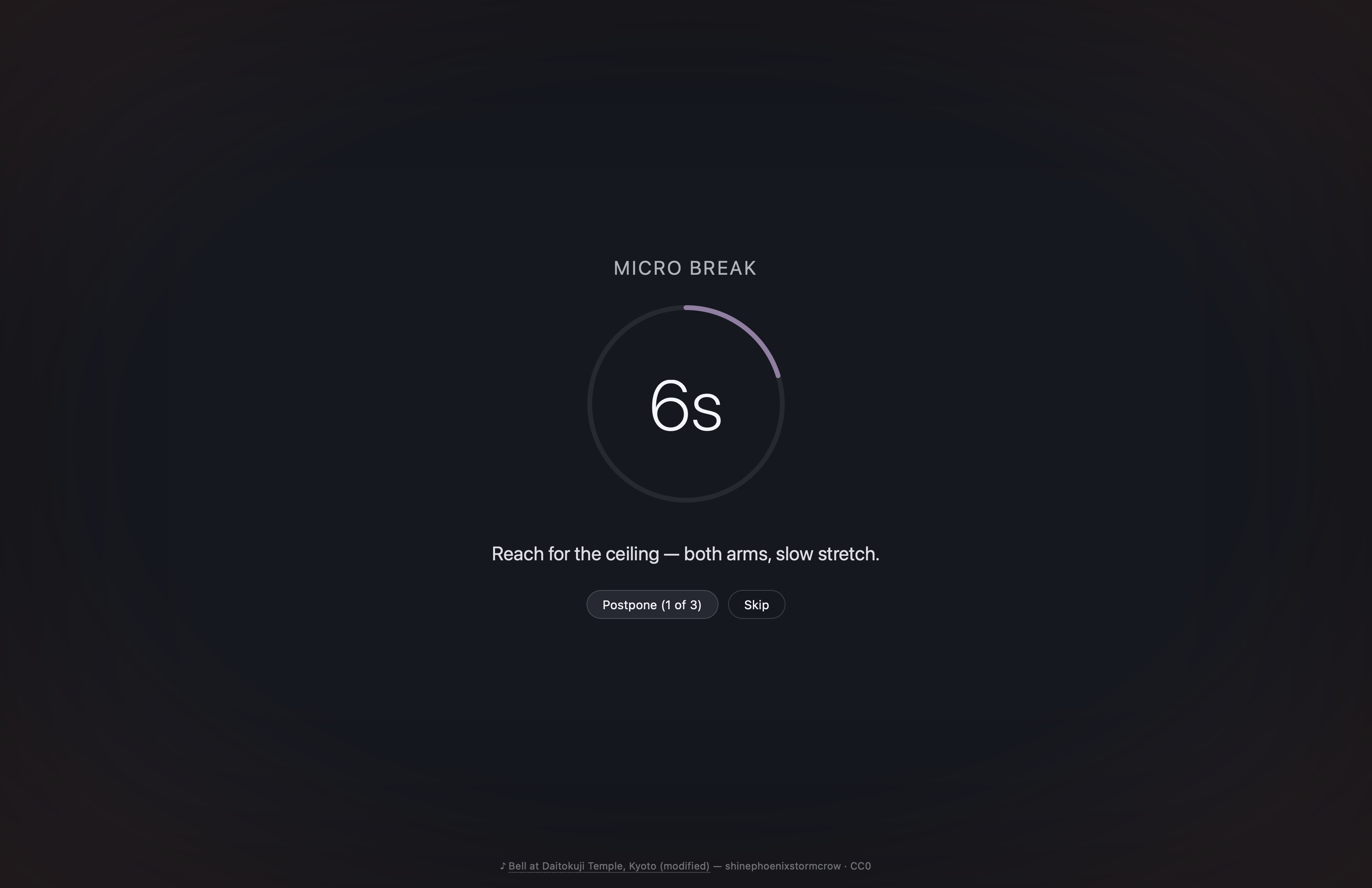
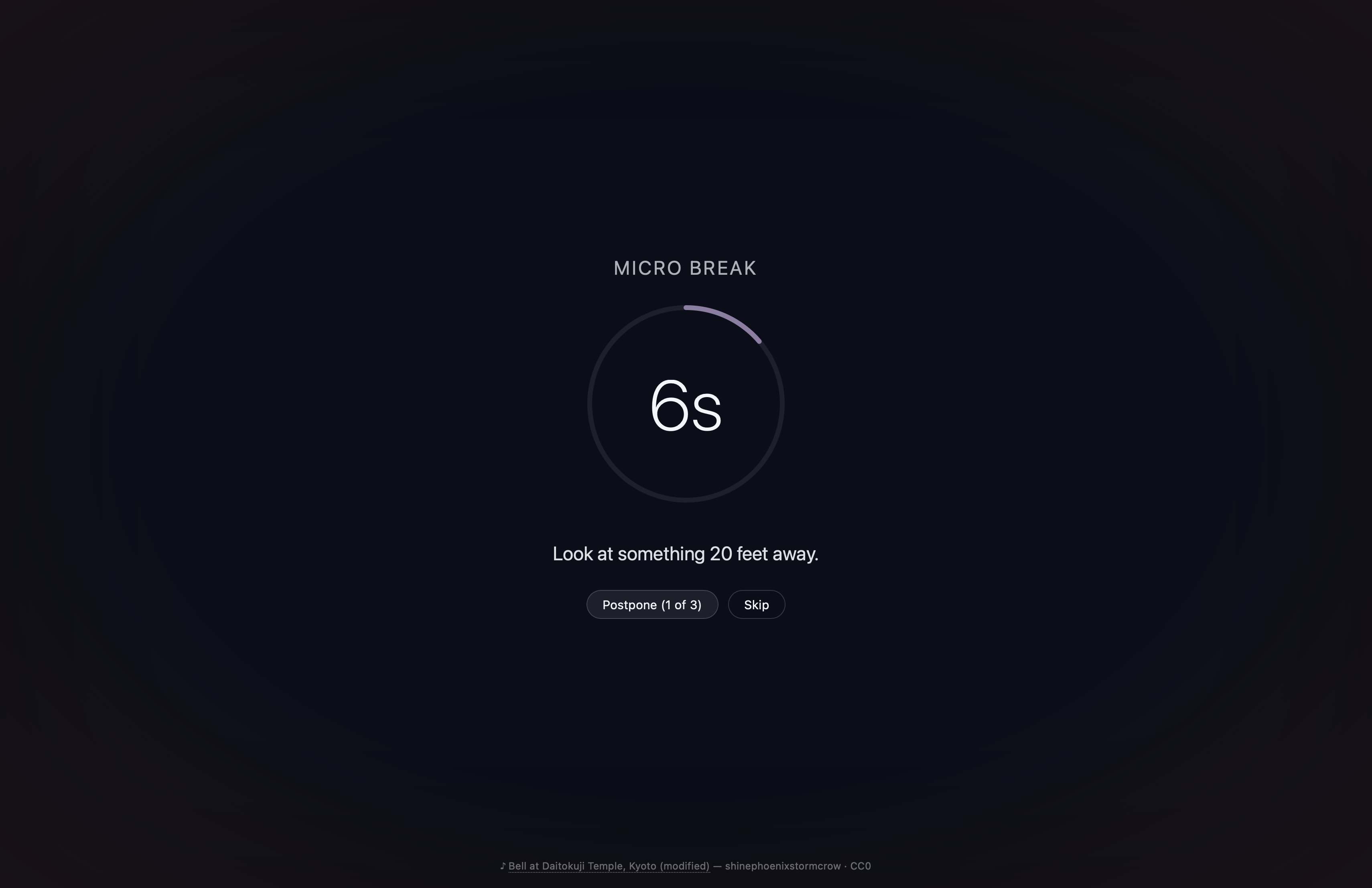
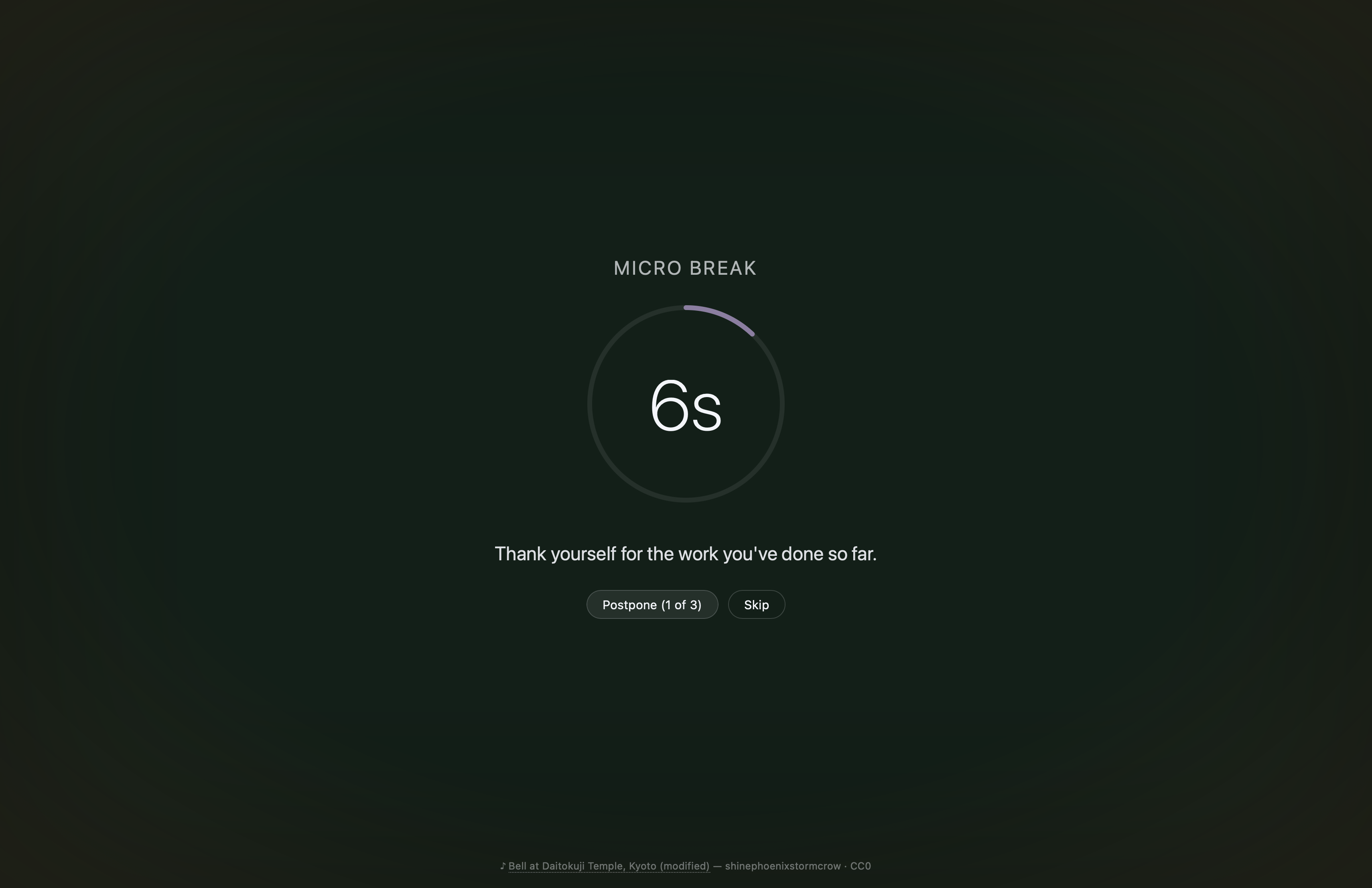
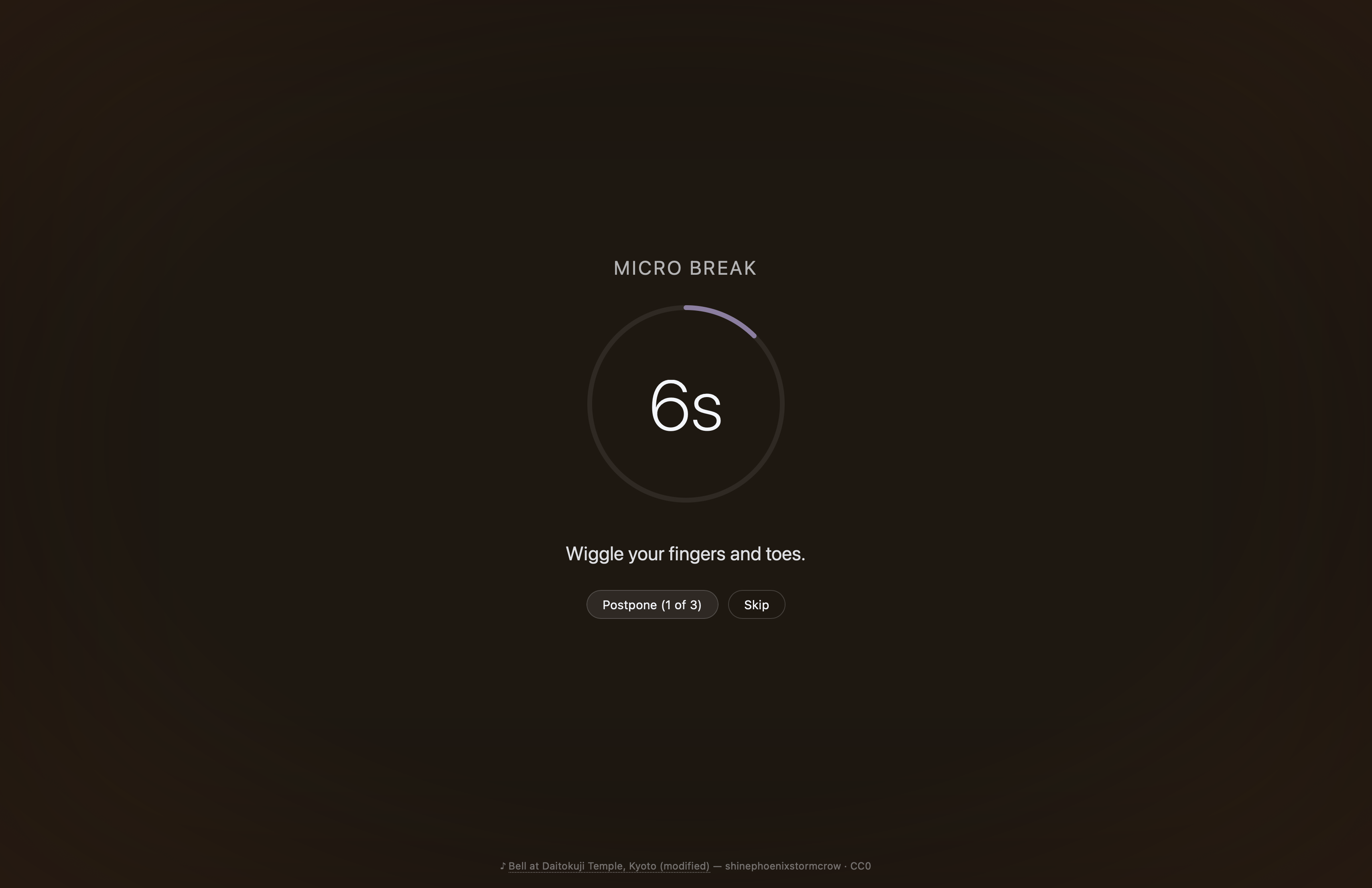
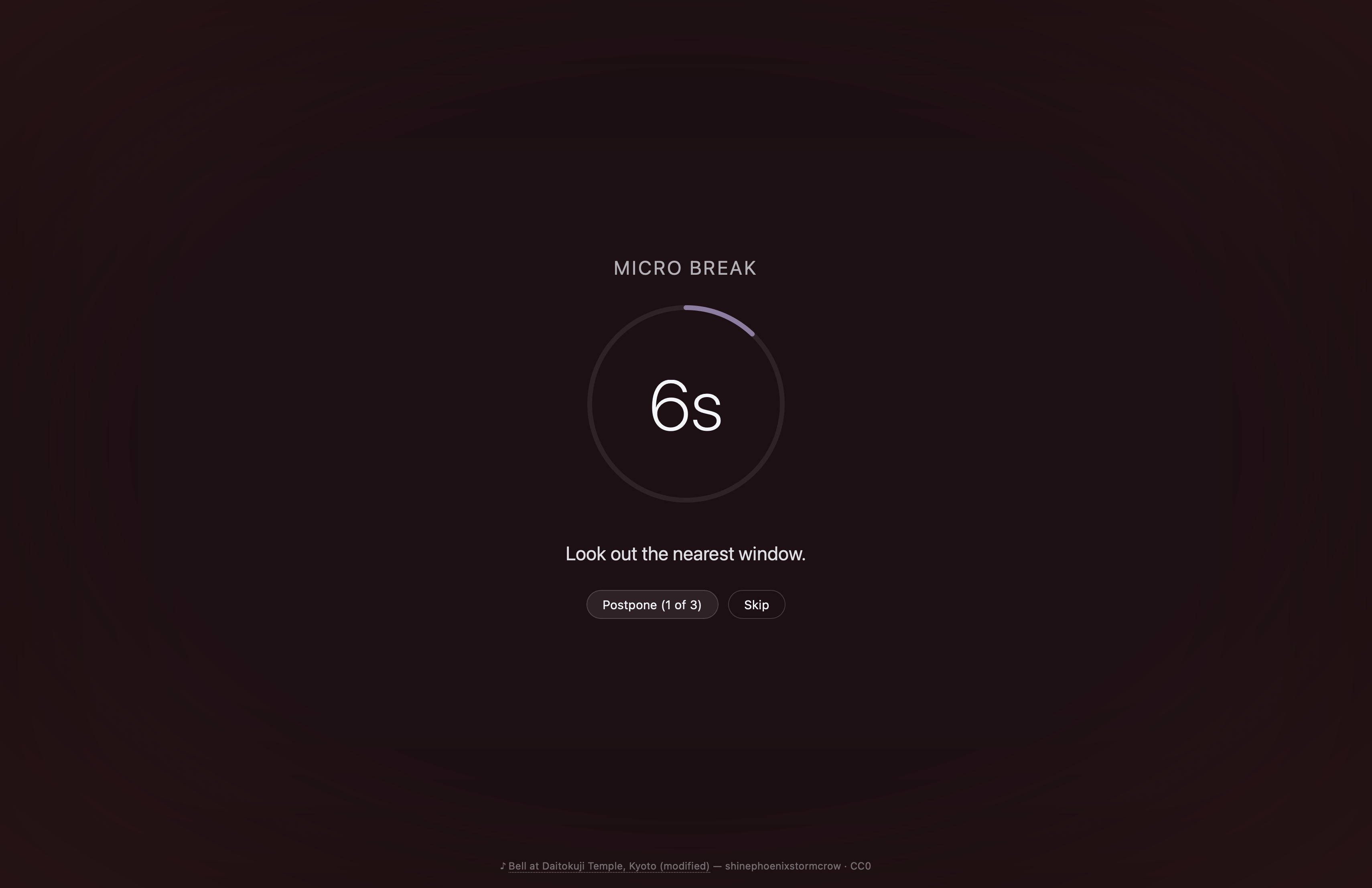
The Theme dropdown ships with five presets — Dark, Midnight, Forest, Rose, Sunset — available to everyone. Two additional entries, Rotate and Custom…, are part of the Supporter pack.
Accessibility
The overlay tries to be friendly to a range of needs.
- High contrast toggle under Breaks → Overlay → Show advanced forces a pure black background, white text, a solid white countdown ring, and bordered buttons with focus rings. It overrides the theme colour and transparency until you turn it off.
- System preferences are respected automatically, regardless of the High contrast toggle:
prefers-contrast: more(macOS Settings → Accessibility → Display → Increase contrast; Windows High contrast mode) auto-enables the high-contrast styling for that break.prefers-reduced-transparency: reduce(macOS Reduce transparency) forces the overlay opaque, ignoring the Transparency slider.prefers-reduced-motion: reduceis already honoured app-wide — the overlay fade-in is skipped.
- Screen readers get a
role="dialog"overlay with anaria-live="polite"announcement when each break starts ("Long break started. 10 minutes remaining."). The countdown timer carries anaria-labelthat reads as e.g. "9 minutes 30 seconds remaining" so navigating to it via screen-reader cursor speaks something meaningful. - Keyboard —
Escskips the break. Postpone, Skip, and "I'm back" reach focus in DOM order; the high-contrast theme adds a yellow focus ring for visibility. - Font size — the Text size slider under Breaks → Overlay scales every text element in the overlay from 80% to 160%, so users who prefer larger text don't have to squint at hint or countdown.